Getting Started & Your Team
This page explains how your organisation gets Shuma, how to sign in for the first time, how admins invite the rest of the team, and how to find your way around.
How Your Organisation Gets Shuma
Shuma isn't a self sign-up product. Dots Africa sets up each organisation:
- Contact Dots Africa on support@dots.africa or 010 446 7683 and tell us you would like to use Shuma.
- Dots Africa sets up your organisation and its first Admin.
- Your admin receives an invitation email and signs in.
- Your admin sets up your careers page and invites the rest of your hiring team.
If your organisation already uses Dots360, tell us. Shuma uses the same Dots Africa account for signing in, and background checks run through Dots360.
Signing In for the First Time
When someone invites you, you get an email saying You have been invited to join the (organisation name) hiring team.
- Open the invitation email and select Sign in to get started.
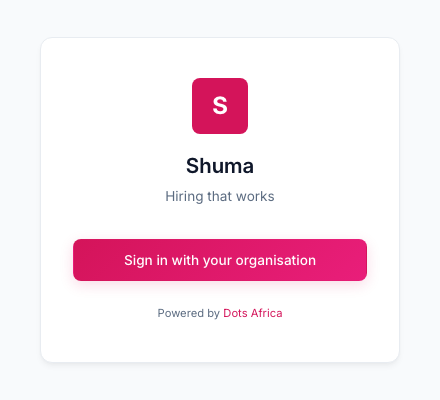
- On the Shuma page, select Sign in with your organisation.
- Sign in with your Dots Africa account for the email address the invitation was sent to.
- Shuma opens on Home. The first time, a short tour shows you around. Select Next to follow it, or Skip tour.
Bookmark Shuma
Use the sign-in link in your invitation the first time, then bookmark the page so you can find it again.
No Dots Africa account yet?
Shuma doesn't create passwords of its own. You sign in with a Dots Africa account that uses the same email address as your invitation. If you don't have one, ask your organisation's administrator to set it up, or contact Dots Africa Support.
Two-Factor Authentication
Because Shuma uses your Dots Africa account, it also uses the same sign-in protection. If your organisation uses two-factor authentication, you'll be asked for your second step (for example a code from an authenticator app) after your password. See Two-Factor Authentication for how to set it up.
Signing Out and Staying Safe
- To sign out, select your name at the bottom of the side menu, then Sign out.
- Sign out when you finish, especially on a shared computer.
- If your session ends, for example after a while without activity, sign in again with your Dots Africa account.
- When you create a job, Shuma saves it as a draft as you go, so you won't lose your work if you're signed out part way through.
Inviting Your Team
Only Admins can invite team members.
- Select Settings in the side menu, then Team.
- Select + Invite Member. The Invite Team Member panel opens.
- Enter the person's Email and Display Name.
- Choose their Role: Recruiter, Admin, Hiring Manager or Viewer.
- Choose their Access Scope:
- Entire Organisation: they see every job in your organisation.
- Restrict to Business Unit(s): tick the Business Units they should see.
- Select Send Invite.
Shuma emails them an invitation. They appear in Team Members as Invited until they sign in, then as Active.
Use the email address of their Dots Africa account
Team members sign in with their Dots Africa account for the email address you invite. If they don't have one yet, your organisation's Dots administrator sets one up for them.
Managing Team Members
In Settings › Team, for each person you can:
| Action | How |
|---|---|
| Change their role | Choose a new role from the list next to their name. |
| Resend an invitation | Select Resend next to anyone still marked Invited. |
| Remove access | Select Deactivate. They can no longer sign in to your organisation's Shuma. |
| Restore access | Select Reactivate next to a deactivated member. |
Roles
| Role | Typical person | What they can do |
|---|---|---|
| Admin | HR lead or Shuma owner | Everything, including Settings: the team, careers page, rejection reasons, data retention, optional features and background checks. |
| Recruiter | Recruiter or talent partner | Create and run jobs, manage candidates, interviews, assessments, offers, templates, talent pools and shortlists, and see reports. |
| Hiring Manager | Line manager who owns a role | View jobs and candidates, schedule and run interviews, write scorecards, and see reports. |
| Viewer | Someone who needs to look but not change | View jobs, candidates and reports. |
Roles on a job
Separately from these roles, each job has a Hiring team (a Recruiter, Hiring manager, Interviewer or Coordinator on that job). Team members see the jobs they work on under Home. See Jobs & Careers Page.
Finding Your Way
The side menu shows the areas your role can use.
| Menu item | What you'll find |
|---|---|
| Home | Your interviews today, what's waiting on you and new applications. |
| Jobs | Every role you're hiring for. Open a job to see its candidates, interviews, reviews and offers in one place. |
| My schedule | Interviews across all your jobs, plus Interview kits and My availability. |
| Candidates | Everyone who has applied, across all jobs. |
| Library | The reusable pieces your jobs are built from: Assessments, Interview kits, Email and SMS templates, Offer letters, Job templates, Talent pools and Shortlists. |
| Reports | Hiring numbers across all jobs. |
| Settings | Admins only: Rejection reasons, Career page, Email templates, Team, Business units, Data retention, Interviews, Features, Privacy requests and more. |
Handy Shortcuts
- Search: select the search icon at the bottom of the side menu, or press Ctrl+K (Cmd+K on a Mac), to jump to a job, candidate or page.
- Dark mode: select the moon icon at the bottom of the side menu.
- Everything lives in the job: open a job from Jobs to find its Overview, Candidates, Interviews, Reviews, Offers, Report, Activity and Setup tabs.
Next Steps
- Create and publish your first job
- Work with candidates and interviews
- Set up background checks and offers
If you get stuck, ask your organisation's Shuma admin first, then contact Dots Africa Support.