Two-Factor Authentication
Two-factor authentication (2FA) adds a second step to your Dots360 sign-in, such as a code from an app on your phone or an email code. This makes it much harder for anyone else to use your account, even if they learn your password.
Whether you must use it depends on your organisation's setting. If it is Optional, you can choose Skip for now and Dots360 will remind you again after 14 days. If it is Required, you must set up a method before you continue.
Signing In with Two-Factor Authentication
- Go to 360.dots.africa and sign in with your email address and password.
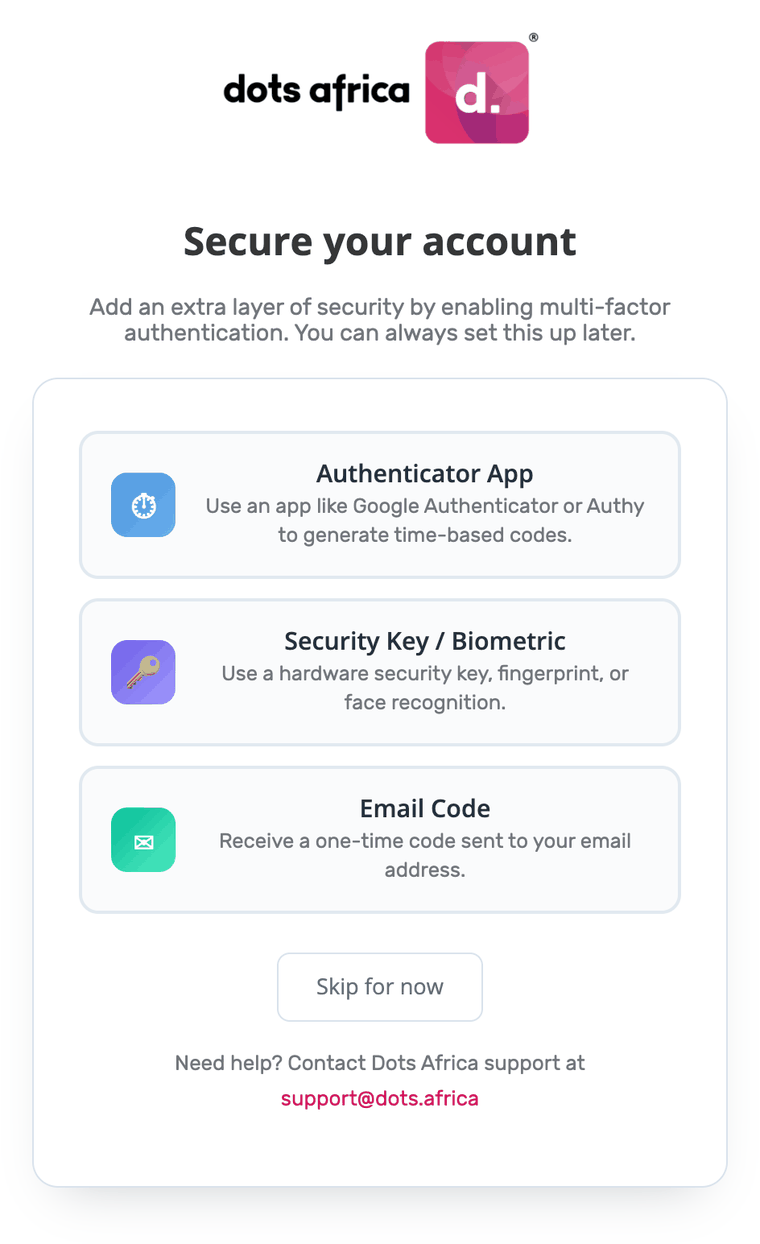
- If you have not set up two-factor authentication yet, you will see Secure your account.
- Choose a method and follow the steps for it (see below), or choose Skip for now.
- On later sign-ins, Dots360 asks for your second step after your password.
Remember this device
After you complete the second step, Dots360 remembers your browser for 30 days. During that time you will not be asked for the second step again on that browser. Clearing your browser's cookies, using private browsing or using another browser or computer will ask for it again.
If You Sign In Through Your Company's Microsoft Account
If your organisation signs you in through its own Microsoft (Entra ID) account, your company's own sign-in, including any second step it uses, applies instead. Dots360 does not add another one.
Choosing a Method
| Method | What you need | What you do at each sign-in |
|---|---|---|
| Authenticator App (recommended) | A free app on your phone, such as Microsoft Authenticator or Google Authenticator | Open the app and enter the 6-digit code it shows |
| Security Key / Biometric (passkey) | Windows Hello, Touch ID or another fingerprint, face or PIN unlock, or a hardware key such as a YubiKey | Confirm with your fingerprint, face, PIN or key |
| Email Code | Access to the email address you sign in with | Enter the 6-digit code Dots360 emails you |
Available methods depend on your organisation
Your organisation's administrator decides which methods are available, so you may not see all of them. Some organisations also offer codes by SMS or WhatsApp.
An authenticator app or a security key gives you the strongest protection. An email code is better than a password alone, but anyone who can read your mailbox can also receive the code.
Setting Up an Authenticator App
- Install Microsoft Authenticator or Google Authenticator on your phone if you do not have one.
- In Dots360, choose Authenticator App. You will see Set up your authenticator app.
- In the app, add a new account and scan the barcode shown on the screen. If you cannot scan it, choose Unable to scan? and type the key into the app instead.
- Enter the 6-digit One-time code the app shows.
- Give your phone a Device Name you will recognise, such as "My phone", and choose Submit.
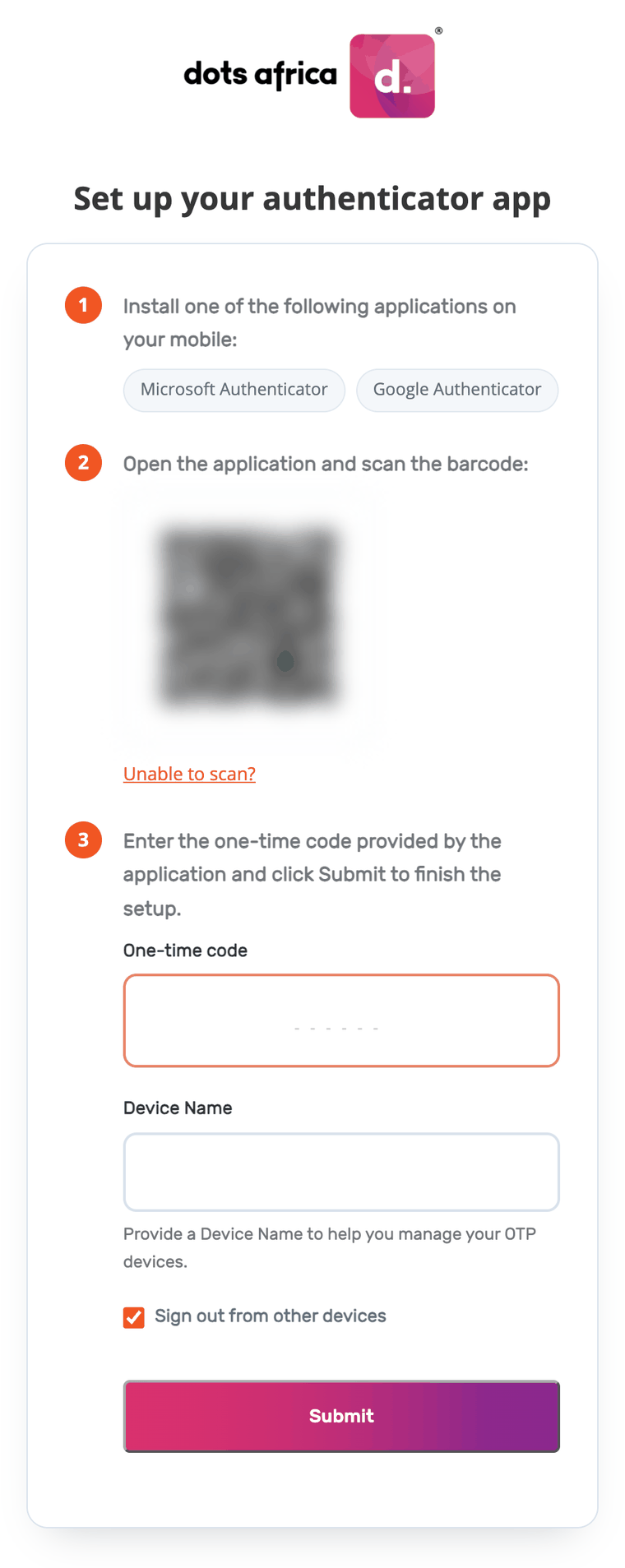
On later sign-ins, you will be asked for a One-time code. Open the app and enter the code it currently shows for Dots360.
Setting Up a Security Key or Passkey
- In Dots360, choose Security Key / Biometric.
- Follow your browser's prompts to create a passkey with your fingerprint, face or PIN, or insert and touch your security key.
- If asked, give it a name you will recognise, such as "Work laptop".
Using Email Codes
- In Dots360, choose Email Code.
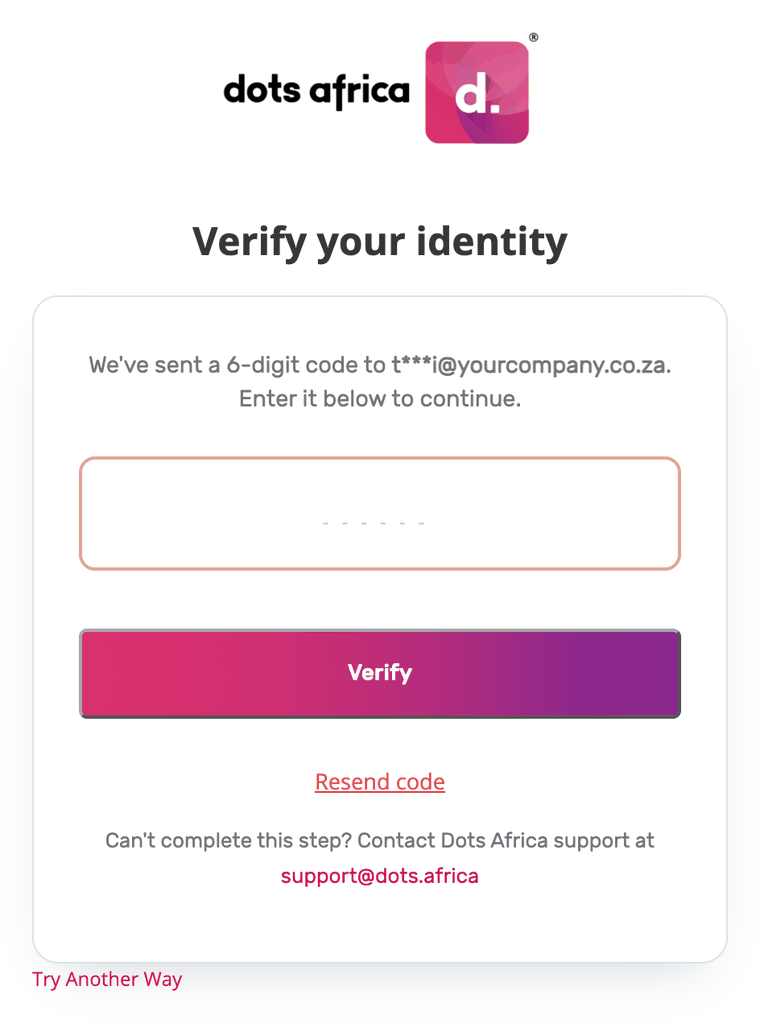
- Dots360 sends a 6-digit code to the email address you sign in with. The code is valid for 5 minutes.
- Enter the code and choose Verify. If it does not arrive, check your junk folder, then use Resend code after one minute.
If You Cannot Complete the Second Step
If you cannot use your authenticator app or security key right now, choose Try Another Way under the code box and then Email code, if your organisation allows email codes. Dots360 emails you a one-time code instead.
If that is not available, or you have lost or replaced your phone, cannot find your security key or are not receiving codes, contact your organisation's administrator. Your administrator can confirm who you are and arrange for your two-factor authentication to be reset, so you can set it up again. The sign-in screen shows who to contact for your organisation.
Wrong codes lock your account temporarily
Several wrong codes in a row lock your account for a short time, and repeated lockouts can block it until it is unlocked. If a code is rejected, wait for the next code in your app rather than entering the same one again.
For a code that is not accepted, also see Common Errors.
For Organisation Administrators
Your organisation's two-factor policy has three settings:
| Setting | What your users experience |
|---|---|
| Off | No invitation to set up two-factor authentication. Users who have already set up an authenticator app or security key are still asked for it at every sign-in. |
| Optional | Users are invited to set up a method and may skip it. They are invited again 14 days after skipping. |
| Required | Users must set up a method before they can continue. |
When a user cannot complete the second step:
- Confirm the request comes from the user, for example by calling them on a number you already hold.
- Log a support ticket asking for their two-factor authentication to be reset, and include the user's email address.
- Once it is reset, the user signs in with their password and sets up a method again.
Help your users first
Most problems are a phone that was replaced or a code typed after it expired. Asking users to come to you first resolves these quickly and keeps account resets under your organisation's control.
Frequently Asked Questions
Do I have to set it up?
Not if your organisation's setting is Optional. Choose Skip for now and you will be invited again after 14 days. If your organisation's setting is Required, you need to set it up before you can continue.
Will I be asked for a code every time I sign in?
No. After you complete the second step, Dots360 remembers your browser for 30 days.
Does two-factor authentication apply to API access or integrations?
No. It applies to signing in through the Dots360 website. Integrations use their own credentials, managed in the Developer Portal.
Can I use more than one method?
Your organisation's administrator decides which methods are available. If more than one is allowed, choose Try Another Way at sign-in to use a different one.
I changed my phone. How do I move my authenticator app?
If your authenticator app backs up your accounts (Microsoft Authenticator and Google Authenticator both can), restore that backup on your new phone. Otherwise, ask your organisation's administrator to arrange a reset, then set the app up again.