DotsTouch Troubleshooting
This page covers all common errors and troubleshooting steps for DotsTouch. Find your issue below and follow the solution.
Login & Authentication Errors
Null Error on Login
Symptoms: Unable to log into DotsTouch. A blank or "null" error message appears.
Causes:
- Incorrect login credentials
- Account is locked
Solution:
- Ensure you are using the same credentials you use for Dots360.
- If you are unsure about your password, email support@dots.africa to request a password reset link.
- Update your password and try again.
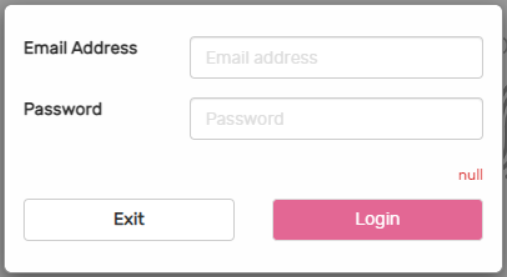
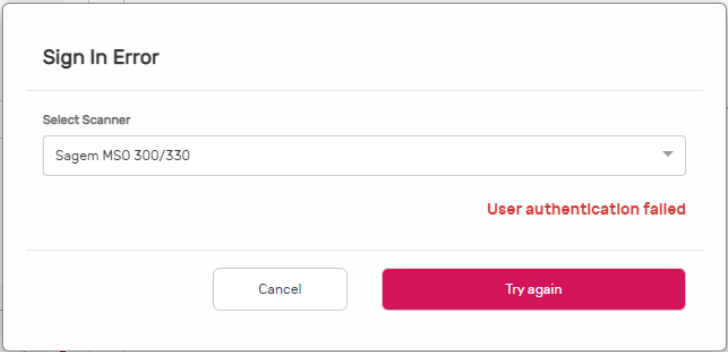
User Authentication Failed
Symptoms: You can log in to Dots360 but cannot access DotsTouch.
Causes: Your fingerprint profile has not been verified or set up yet.
Solution: Email support and ask us to check the status of your fingerprint profile.
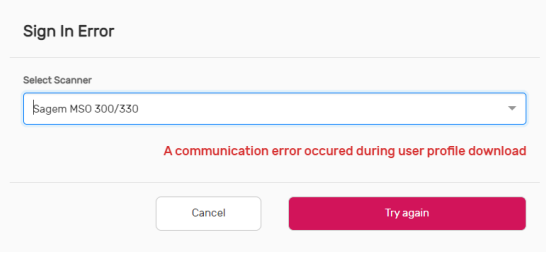
Communication Error During User Profile Download
Symptoms: "No Afiswitch profile found" or "Application is unable to download your profile."
Causes: Your fingerprint profile has not been set up, or has not finished setting up.
Solution: Email support and ask us to check the status of your fingerprint profile.
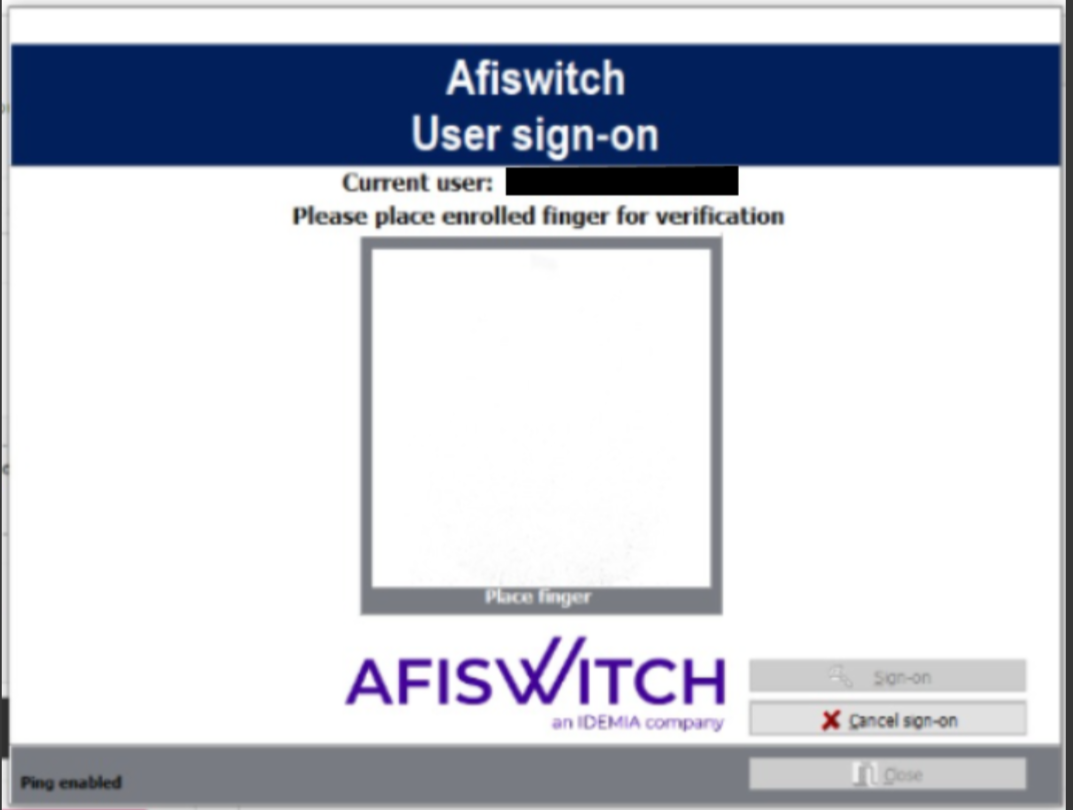
Stuck on Fingerprint Authentication
Symptoms: The Afiswitch User sign-on screen prompts you to place an enrolled finger for verification and you cannot proceed.
Causes: Fingerprint sign-on is enabled and the system requires biometric authentication before granting access.
Solution: Place your enrolled finger on the fingerprint scanner to authenticate. Make sure the scanner is properly connected and your finger is clean and correctly positioned.
Fingerprint Capture Errors
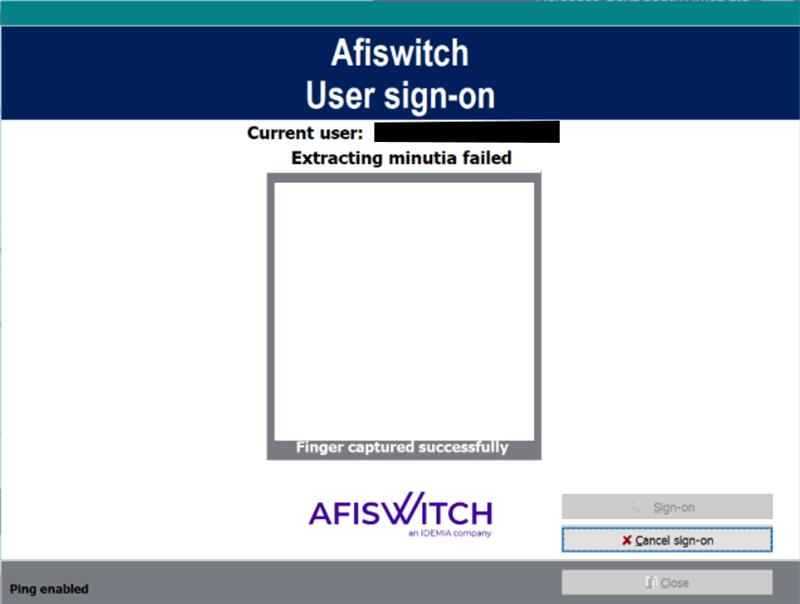
Extracting Minutia Failed
Symptoms: Unable to scan fingerprints for authentication.
Causes:
- Missing or corrupted dependencies (device drivers or Microsoft Visual C++ redistributables)
- Unstable finger placement during capture
Solution:
- Verify that all required dependencies are installed (see Installation).
- Ensure the user keeps their finger still and properly positioned during capture.
- If the issue persists, uninstall and reinstall all components in the correct order:
- Uninstall Microsoft Visual C++ 2008
- Uninstall fingerprint scanner drivers
- Uninstall DotsTouch
- Restart the machine
- Reinstall all components following the Installation Guide
Failed Status on Fingerprint Save
Symptoms: A record is saved with the status "Failed".

Causes:
- Incorrect or incomplete candidate information
- Poor fingerprint or document quality
- System validation errors
- A temporary network issue
Solution:
- Review the captured information and ensure all required details are correct.
- Retry the fingerprint capture.
- If the issue persists, contact support.
Only Some Fingerprints Are Captured
Symptoms: Some fingers capture successfully but others are rejected or come out incomplete.
Causes: A dirty scanner surface, or the finger is not placed flat and fully on the scanner.
Solution:
- Clean the scanner glass with a soft, dry, lint-free cloth.
- Ask the candidate to place the whole fingertip flat on the scanner and keep it still.
- Capture the finger again.
Application Errors
DotsTouch Fails to Launch
Symptoms: DotsTouch does not start or crashes immediately.
Causes: Missing administrator privileges or missing dependencies.
Solution:
- Right-click DotsTouch and select Run as Administrator.
- Verify that all Windows updates are installed.
- Confirm all dependencies are installed (see Installation).
- Reinstall DotsTouch if the problem persists.
External Exemption Error E0434352
Symptoms: You see an error message referencing E0434352, or DotsTouch fails to detect your fingerprint scanner (the green indicator is off).
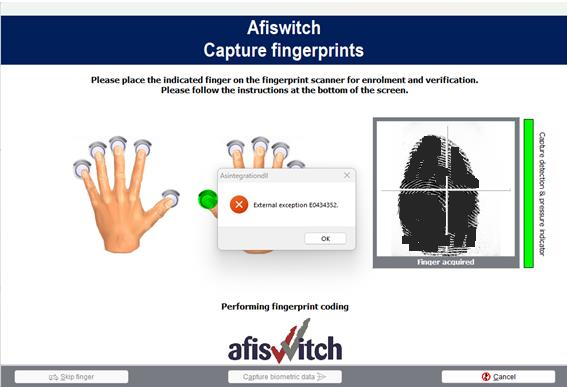
Causes: The fingerprint scanner is not properly connected, or required drivers and/or redistributables are not installed.
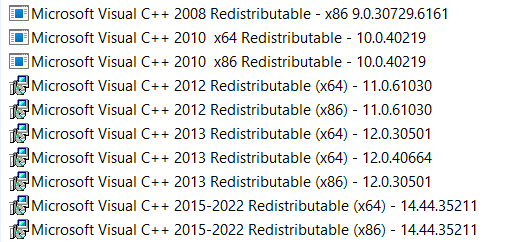
Solution: Open Control Panel → Programs and Features and confirm that all of the following components are installed. If any item is missing, download and install it and restart your computer.
1. Microsoft Visual C++ Redistributables
2. MSO USB Drivers

3. Suprema RealScan Drivers

Scanner & Driver Errors
Scanner Not Detected / No Green Light
Symptoms: The fingerprint scanner does not show a green light and DotsTouch cannot detect the device. Device Manager may show errors, or Core Isolation may be blocking the driver.
Causes:
- Legacy Suprema or Sagem drivers are installed
- Drivers were blocked or corrupted during a Windows update
- Core Isolation or Program Compatibility Assistant is interfering
Solution:
- Run PowerShell as Administrator
- Use the driver removal script below to detect and remove legacy drivers
- Reinstall official drivers: MSO USB Driver 4.7.0.0
- Unplug and replug the scanner — the green light should flash
USB Driver Cannot Load on This Device
Symptoms: A Program Compatibility Assistant warning states that a driver cannot be loaded when the fingerprint scanner is connected.
Typical message:
- A driver cannot load on this device
- Driver:
UsbSagMso_x64.sys
Causes: Legacy Suprema or Sagem USB drivers remain installed in the Windows Driver Store. Windows security settings block the incompatible driver.
Solution: Remove the incompatible driver using the driver removal script below, then reconnect the scanner.
Windows Security — This Content Is Blocked (UAC.dll)
Symptoms: A Windows Security popup prevents access to content.
Typical message:
- This content is blocked
- For your protection, your administrator is not allowing you to access content from UAC.dll
Causes: A legacy or incompatible driver attempts to execute restricted system components. Commonly triggered by outdated Suprema or Sagem drivers.
Solution: Remove the incompatible driver using the driver removal script below, then reconnect the scanner.
Driver Blocked by Core Isolation (Memory Integrity)
Symptoms: The fingerprint scanner fails to initialise, and Windows Security shows the driver is blocked by Core Isolation.
Users may see:
- Driver listed as incompatible under Windows Security → Device security → Core isolation
- Memory integrity settings preventing the driver from loading
Causes: Legacy USB drivers from Suprema or Sagem are incompatible with Windows Core Isolation and Memory Integrity security features.
Solution:
Do not disable Memory Integrity
Do not disable Memory Integrity unless explicitly advised by your security team. Follow the driver removal steps instead.
Remove the incompatible driver using the driver removal script below, then reconnect the scanner.
Driver Shows Error in Device Manager
Symptoms: The fingerprint scanner appears with an error icon in Device Manager. Common error codes:
- Code 31: This device is not working properly because Windows cannot load the drivers required for this device.
- Code 52: Windows cannot verify the digital signature for the drivers required for this device.
Causes: An incompatible or corrupted USB driver is installed, or Windows security features block unsigned drivers.
Solution: Remove the incompatible driver using the driver removal script below, then reconnect the scanner.
Removing Legacy Drivers
All scanner and driver errors above share the same root cause: legacy Suprema or Sagem drivers. Use this script to detect and remove them.
Run PowerShell as Administrator
This script requires elevated privileges. Right-click PowerShell and select Run as Administrator.
pnputil /enum-drivers | Out-String | ForEach-Object {
    $_ -split "(?=Published Name\s*:)"
} | ForEach-Object {
    if ($_ -match "Provider Name\s*:\s*(Suprema|Sagem)") {
        Write-Host "==== LEGACY DRIVER FOUND ====" -ForegroundColor Cyan
        Write-Host $_.Trim()
        if ($_ -match "Published Name\s*:\s*(oem\d+\.inf)") {
            $inf = $matches[1]
            $response = Read-Host "Remove this driver? (Y/N)"
            if ($response -match "^[Yy]$") {
                Write-Host "Removing driver: $inf" -ForegroundColor Yellow
                pnputil /delete-driver $inf /uninstall /force
                Write-Host "Driver removed." -ForegroundColor Green
            } else {
                Write-Host "Skipped." -ForegroundColor Gray
            }
        }
    }
}
After running the script:
- Reinstall MSO USB Driver 4.7.0.0
- Unplug and replug the scanner
- The scanner should now show a green light and be fully functional
Still Having Issues?
If the steps above don't resolve your problem:
- Try a different USB port
- Check if another application is using the scanner
- Restart the computer after driver installation
- Contact support with a screenshot of the error and your Device Manager view