Fingerprint Capture Workflow
This guide explains how to capture candidate fingerprints using DotsTouch, from login to submission.
Before You Begin
Prerequisites
- DotsTouch and all dependencies are installed — see Installation
- A supported fingerprint scanner is connected and showing a green light
- You have a verified Dots Africa user account
- Your computer is connected to the internet
Step 1: Launch DotsTouch
- Open DotsTouch from the Start menu or desktop shortcut
- Check that the fingerprint scanner is detected (green indicator in the app)
If the indicator is not green, see Troubleshooting.
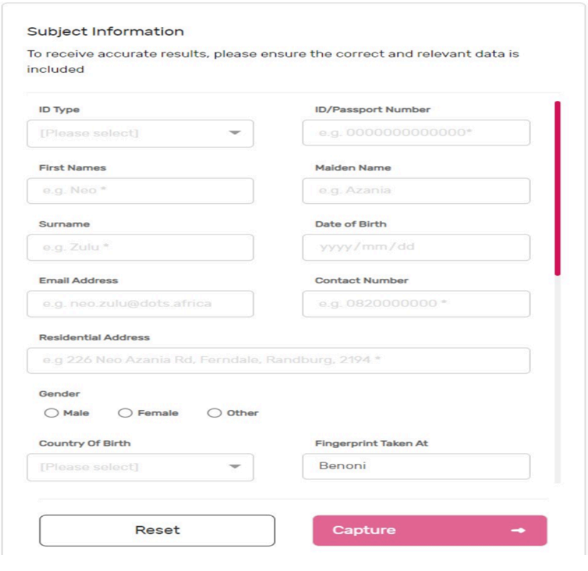
Step 2: Enter Candidate Details
Enter the candidate's information in the form:
See example
Tip
You can save entries as a Draft if the candidate's details are incomplete. Come back and finish later.
Step 3: Capture Fingerprints
-
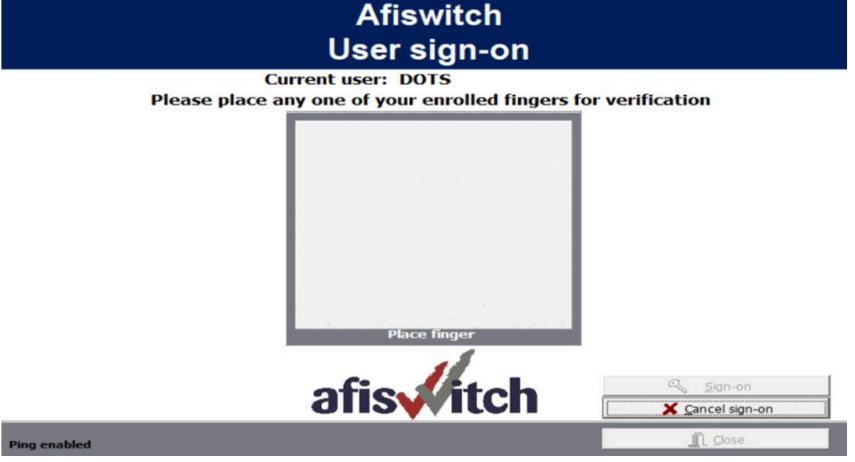
Authenticate yourself first — Place your right index finger on the scanner. This confirms your identity as the operator.
See example
-
Capture the candidate's fingerprints — Follow the on-screen prompts. Place the candidate's finger on the scanner as instructed.
-
Authenticate again — After capturing all fingerprints, place your right index finger on the scanner once more to confirm completion.
About authentication
Each time you click Capture, you must verify your identity with your right index finger. If there is no match, you will not be able to proceed. Contact support if you're unable to authenticate.
Tips for better scans
- Ensure fingers are clean and dry
- Apply gentle, even pressure on the scanner
- Keep the finger still during capture
- Capture each finger twice if prompted
Step 4: Save or Submit
After capturing fingerprints, choose how to handle the data:
| Option | What it does |
|---|---|
| Save as Draft | Saves candidate details locally. Fingerprints are not uploaded. |
| Upload fingerprints | Uploads fingerprints to Dots360 for cloud storage. You can submit the check later. |
| Upload and perform check | Uploads fingerprints and immediately submits them for processing. |
For more details on each option, see Data Storage Options.
Step 5: Verify and Complete
- Review the captured fingerprints for clarity
- If any are unclear, recapture them
- Confirm the candidate's information is correct
- Finalise the record
Tip
Use Draft mode for incomplete entries — you can resume and complete them later.
Next Steps
- Data Storage Options — Understand the difference between local, upload, and submit
- Troubleshooting — Solutions if something goes wrong during capture
- FAQs — Answers to common questions