DotsTouch Installation
This guide walks you through installing DotsTouch and all required dependencies on a Windows machine.
Before You Begin
Requirements
- Windows 8 (64-bit) or later
- Administrator privileges on the computer
- A supported fingerprint scanner (connected via USB)
- Internet connection (for downloading dependencies)
Supported Fingerprint Scanners
| Scanner | Status |
|---|---|
| MSO300 Series | Supported |
| MSO330 Series | Supported |
| Suprema BioMini Slim | Supported |
Installation Steps
Follow these steps in order. Skipping steps or installing out of order will cause errors.
Step 1: Install Microsoft Visual C++ Redistributables
DotsTouch requires several Visual C++ runtime libraries. Download and install all of the following packages (both x64 and x86 versions):
| Package | x64 | x86 |
|---|---|---|
| Visual C++ 2008 | — | Download |
| Visual C++ 2010 | Download | Download |
| Visual C++ 2012 | Download | Download |
| Visual C++ 2013 | Download | Download |
| Visual C++ 2015–2022 | Download | Download |
Important
You must install both x64 and x86 versions of each package. Missing any of these will cause an "Extracting minutia failed" error when capturing fingerprints. See Troubleshooting for details.
Step 2: Install USB Drivers
Download and install the drivers for your fingerprint scanner:
| Driver | Download |
|---|---|
| MSO USB Driver 4.7.0.0 | Download (ZIP) |
| Suprema RealScan Drivers | Download (ZIP) |
After downloading:
- Right-click the downloaded ZIP file and select Extract All...
- For MSO USB Drivers: open the extracted folder and run
MSO_USB_Driver x64.msi - For Suprema: open the extracted folder and run the installer
Important
Failure to install drivers will prevent the scanner from being detected. The scanner should show a green light when properly installed and connected.
Step 3: Install .NET Framework 3.5
DotsTouch requires .NET Framework 3.5. To check if it's already installed:
- Press Windows + R to open the Run box
- Type
optionalfeatures.exeand press Enter - Look for .NET Framework 3.5 (includes .NET 2.0 and 3.0):
- If checked — it's already installed, skip to Step 4
- If unchecked — check the box and click OK to install
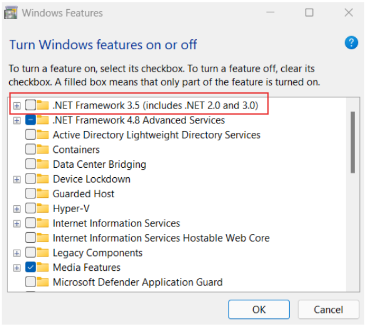
Note
An active internet connection is required for the .NET Framework installation. If installation fails, check your network connection and try again.
Step 4: Install DotsTouch
- Download the latest DotsTouch installer. The file is named like
dots-touch-v2.4.1-setup-ia32.exe. - Open your Downloads folder, right-click the file and choose Run as administrator.
- Choose I Agree, keep the default installation folder and choose Install.
- Choose Finish, then open DotsTouch from the Start menu.
Verify Installation
After completing all steps:
- Open DotsTouch from the Start menu
- Connect your fingerprint scanner via USB
- Confirm the scanner shows a green light
- In DotsTouch, verify the scanner status indicator is green
If the scanner is not detected, see Troubleshooting.
IT Administrator Guide
For IT teams deploying DotsTouch to multiple machines
Network Requirements
DotsTouch needs outbound HTTPS (port 443) access to Dots Africa's services and our biometric verification partner, and to Microsoft's download servers while you install the dependencies. If your network restricts outbound traffic, contact support for the current list of addresses to allow.
Silent Installation (Mass Deployment)
For deploying via SCCM, Intune, or Group Policy, the Visual C++ redistributables support silent installation:
REM Install all VC++ redistributables silently
vcredist_x86_2008.exe /q
vcredist_x64_2010.exe /q /norestart
vcredist_x86_2010.exe /q /norestart
vcredist_x64_2012.exe /install /quiet /norestart
vcredist_x86_2012.exe /install /quiet /norestart
vcredist_x64_2013.exe /install /quiet /norestart
vcredist_x86_2013.exe /install /quiet /norestart
vc_redist.x64_2022.exe /install /quiet /norestart
vc_redist.x86_2022.exe /install /quiet /norestart
For MSO USB drivers:
For .NET Framework 3.5 (requires Windows installation media or WSUS):
Verification Script
Run this PowerShell script to verify all dependencies are installed:
# Check Visual C++ redistributables
$vcRedists = Get-ItemProperty "HKLM:\SOFTWARE\Microsoft\Windows\CurrentVersion\Uninstall\*",
                               "HKLM:\SOFTWARE\WOW6432Node\Microsoft\Windows\CurrentVersion\Uninstall\*" |
             Where-Object { $_.DisplayName -like "*Visual C++*" }
Write-Host "Installed VC++ Redistributables:" -ForegroundColor Cyan
$vcRedists | Select-Object DisplayName | Sort-Object DisplayName | Format-Table -AutoSize

# Check .NET Framework 3.5
$netFx3 = Get-WindowsOptionalFeature -Online -FeatureName "NetFx3" | Select-Object -ExpandProperty State
Write-Host "`n.NET Framework 3.5: $netFx3" -ForegroundColor $(if ($netFx3 -eq 'Enabled') { 'Green' } else { 'Red' })

# Check USB drivers
$drivers = Get-PnpDevice | Where-Object { $_.FriendlyName -like "*MSO*" -or $_.FriendlyName -like "*Suprema*" }
Write-Host "`nFingerprint Scanner Drivers:" -ForegroundColor Cyan
$drivers | Format-Table FriendlyName, Status -AutoSize
Next Steps
- Fingerprint Capture Workflow — Learn how to capture fingerprints
- Troubleshooting — Solutions to installation and runtime errors