Making and Tracking a Confidential Report
If your organisation uses Cipher for whistleblowing, you can report fraud, corruption, harassment, safety concerns and other wrongdoing through a confidential channel. You do not need to sign in, and you do not have to give your name. Staff, contractors, suppliers and members of the public can all use it.
Your organisation shares the links to its reporting pages — for example on its intranet, in its code of conduct, on posters or in supplier contracts. If you cannot find them, ask someone you trust at the organisation, or check its whistleblowing policy.
The Confidential Reporting Hotline Page
The Confidential Reporting Hotline page is the front door to the channel. It shows the organisation's name and explains that the channel is protected and needs no login.
From here you can:
- choose Submit a Report to open the report form;
- call or email the hotline, if the organisation shows a number or email address; or
- choose Already made a report? Check its status to follow up on an earlier report.
Making a Report
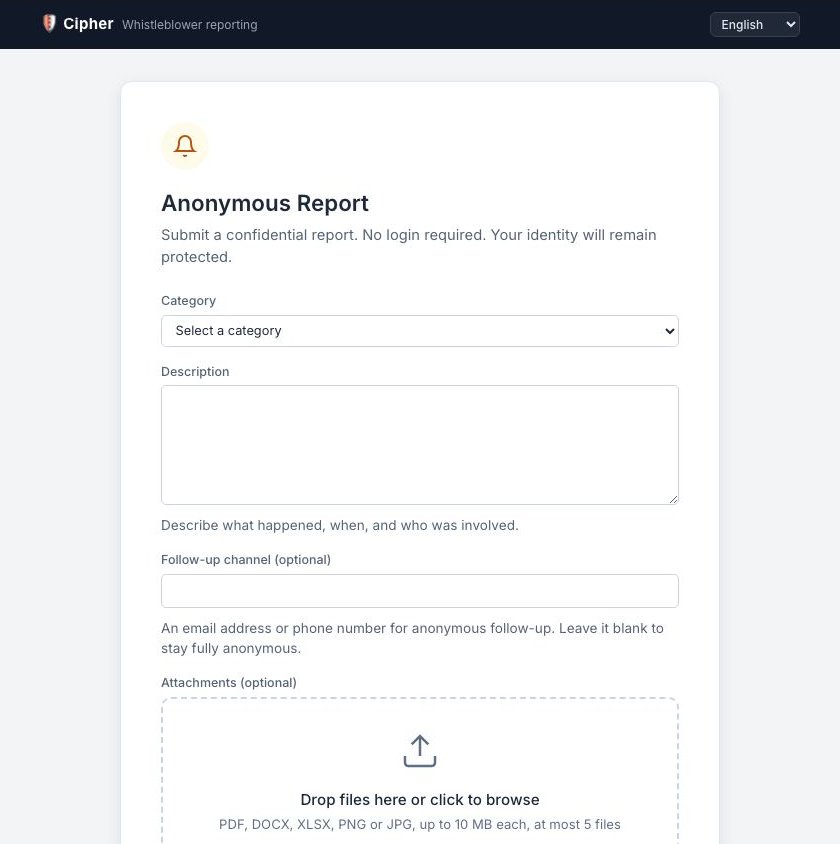
- Choose Submit a Report. The Anonymous Report form opens.
- Under Category, choose the closest match: Fraud, Corruption, Harassment, Safety Concern, Discrimination, Conflict of Interest, Data Breach, Regulatory Violation or Other.
- Under Description, describe what happened, when, and who was involved. Write at least 10 characters and no more than 5,000.
- Under Follow-up channel (optional), you may leave an email address or phone number. Leave it blank to stay fully anonymous.
- Under Attachments (optional), you may add up to 5 files — PDF, DOCX, XLSX, PNG or JPG, up to 10 MB each. Drag them onto the box or click it to browse.
- Choose Submit Report. The button is available once you have chosen a category and written a description.
If you see "Your report could not be submitted. Please try again.", check that your description is between 10 and 5,000 characters and that you used the link your organisation published, then try again. What you typed is kept on the form.
Your Reference Code
When your report is sent, the page shows Report Submitted and your reference code in large type. It starts with WB- followed by letters and numbers, for example WB-1A2B3C4D5E6F7A8B.
Save your reference code now — it cannot be recovered
The reference code is the only way to check on your report. Nobody can look it up or send it to you again. Write it down and keep it somewhere safe and private. Anyone who has your code can see your report's status and messages, so do not share it.
Under the code, the page lists each file you attached and whether it was attached. If a file could not be attached, it was not saved — you can make a new report that quotes your reference code, or use the hotline number or email if one is shown.
If you left an email address, you also receive an email with your reference code, and further emails when the status changes or a message is shared with you. These emails do not contain links — use the organisation's Check on a report page.
Checking on Your Report
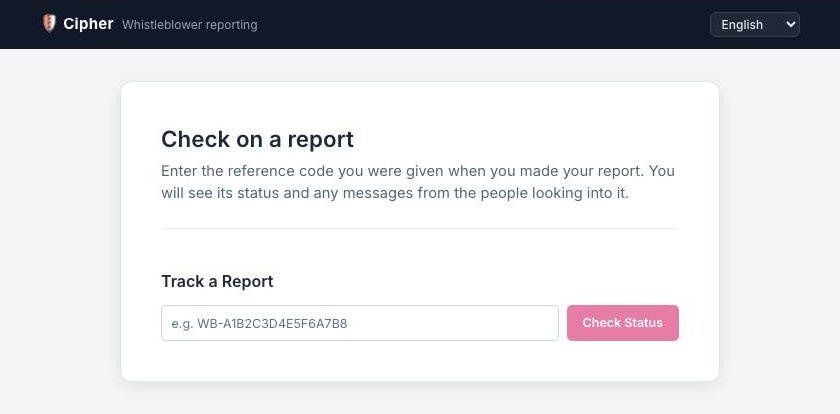
- Open the Check on a report page, or choose Already made a report? Check its status on the hotline page or report form.
- Type your reference code exactly as given, including WB- and capital letters.
- Choose Check Status.
You will see:
- Reference — your code.
- Status — where your report stands.
- Submitted — when you made it.
- Updates — any messages shared with you by the people looking into it, oldest first. This only appears once there is something to show.
| Status | What it means |
|---|---|
| New | Your report has been received |
| In review | Your report is being looked at |
| Investigating | Your report is being investigated |
| Resolved | The matter has been dealt with |
| Closed | The report is closed |
If you see "No report found for that reference code", check you typed the code exactly as given.
Check back regularly
The people looking into your report may share a message or ask a question through the Updates section. Check back from time to time with your code.
Adding Information Later
There is no reply box on the tracking page. If you want to add something or answer a question, you can:
- make a new report that quotes your reference code;
- call or email the hotline, if your organisation shows one; or
- wait to be contacted, if you left an email address or phone number.
Staying Anonymous
- You do not need to sign in, and the form does not ask for your name.
- The Follow-up channel is optional. If you leave it blank, the only way to follow up is with your reference code.
- Be careful what you include. Details in your description or in attached files — such as your name in a document's properties, or a detail only you would know — could identify you.
- Use a private device and browser if you are worried about being seen making a report.
- Keep your reference code private.
Your rights
South African law, including the Protected Disclosures Act, protects employees and workers who report wrongdoing in good faith. Read your organisation's whistleblowing policy for how it handles reports and protects reporters.
Need Help?
If you have a question about a report you have made, use the hotline details your organisation provides or quote your reference code in a new report. For technical problems with the reporting pages, check status.dots.africa or contact Dots Africa Support — never include your reference code or the details of your report when contacting Dots Africa Support.